Using Custom Fields in your projects

When managing and tracking your issues and tasks, it’s important that you get the information you need from those reporting or updating your issues.

MantisHub has native fields that exist ‘out-of-the-box’ that will capture generic information relevant to any issue, no matter your business. These are things like the reporter of the issue, the time of reporting, priority, status, last update and more.

We also have common project management and software development fields that you can tap into, with our support for due date, time tracking, and versions.

However, there will always be specific information needed that might only be relevant to your industry or business. You might even have data specific to certain projects that you are running. If that’s the case, you should take a look at MantisHub Custom Fields. It allows you to create a new field with a specific data type and settings, and link it to the projects where you want to gather the data.

Configuring Custom fields

This functionality is on by default and is configurable via your Manage page. Head to the Custom Fields tab, enter in the name of your new field, click the “New Custom Field” button and you’re on your way.

There are a number of aspects of the custom field you need to define including, type, default value, possible values, access to read or edit this field and the length of the field.

Custom field types
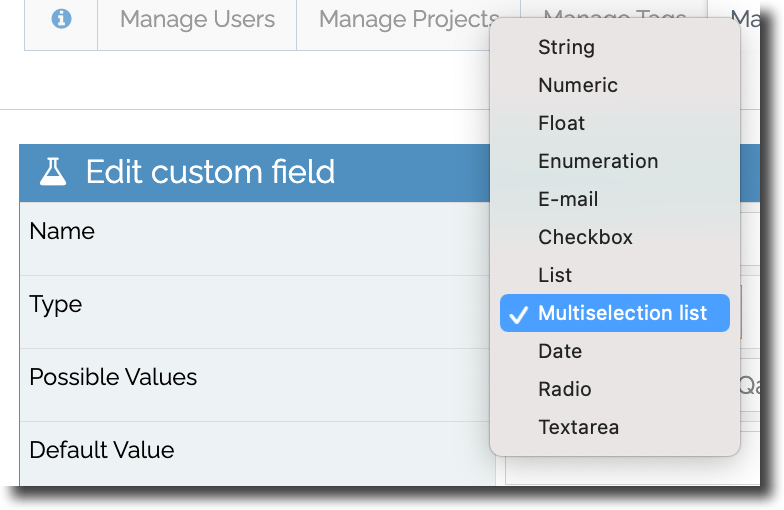
Most of the ‘Type’ options for custom fields are self-explanatory (string, numeric, text area etc). However, we’ve had some common questions from our customers which we’ve turned into these tips below:

  1. Float is essentially a decimal number.
  2. Enumeration is a list of values and is displayed as a dropdown list. You can only select one option and a check mark is displayed next to the selection.
  3. List shows you all the value options in one box.
  4. Multiselect is a list that allows selection of more than one option by holding the Shift/Cmd/Ctrl key.
  5. Checkbox and Radio both display all options with a box or circle to denote the selection. Checkbox will allow more than one value to be checked whereas Radio only allows one value.

Other custom field settings

You also have a number of settings in the custom field configuration where you can nominate if this field should be:

  • displayed when reporting, editing, resolving or closing an issue
    • mandatory when reporting, editing, resolving or closing an issue
      • available as a filter option on the View Issues page.

Cool Feature: You can reference your versions and categories fields as possible values of a custom field! When defining your custom field, set the type to be ‘List’ and within the ‘Possible Values’ setting you can define the following options:

  • ‘=users’ will list users with access to the project + empty/none option
  • ‘=handlers’ will list users with access to be assigned issues in the project + empty/none option
  • =versions‘ will lists all non-obsolete versions
  • =released_versions‘ will list all released versions
  • =future_versions‘ will list all non-released, non-obsolete versions
  • =categories‘ will use your list of categories

But keep an eye on this space… cause we hope to release more options for referencing other fields as possible values in the future! Check out our support article for help on creating custom fields.

Linking the field to the project

Once the custom field is created, you need to link it to the projects in which you wish to use it. Go into your newly created custom field and scroll to the bottom where you will see the “Link custom field to projects” section. Select the project (or multiple projects by holding down the shift + ctrl/cmd key). Optionally you can specify a Sequence which determines the order in which it appears in the issue details. Then Click “Link Custom Field”.
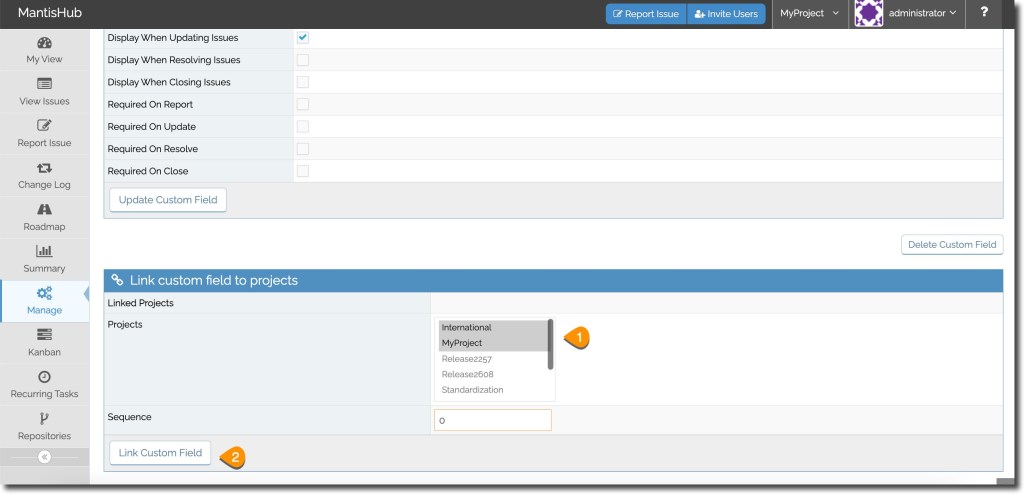
Happy data gathering! As always you can reach out to the MantisHub experts on the support team if you need help with any aspect of setting up or linking custom fields.

Scheduled issue creation with Recurring Tasks

Recurring tasks

MantisHub has just launched a super useful plugin exclusive for MantisHub customers to help you handle those regular ongoing tasks that every team has on their plate.

There is only so much information you can fit into a calendar reminder so having the added functionality of automatic creation of an issue that you can track through to completion, which includes any repetitive data and details, inherits default field values (e.g. priority or due dates), automatically assigned to the right person as well as triggering email notifications (or integrated with your chat application) to keep everyone in the loop is a huge bonus!

Available for Platinum and above plans, our Recurring tasks plugin allows you to set a schedule for automatic creation of issues with your desired settings.

Tasks can be set daily, weekly, monthly or annually and you can set a default description and assignment as well as restrict the number of times the task is created.

The use cases are endless. You can use it to automatically create issues and track tasks. such as:

  • annual service subscription renewals or performance appraisals
  • monthly reporting, invoicing, or payroll
  • weekly check on cloud consumption costs to avoid surprises.
  • daily dashboard and log checks

You know your system best and how recurring tasks can help in your workflow and business processes to improve efficiency. And to make sure those repetitive tasks (not always particularly popular) don’t get swept under the carpet.

Super flexible too. Once created, you can amend, re-assign, limit, disable or re-enable tasks as needed. Check out our support article for more details on how to turn it on and how it all works. 

Hope we’ve helped solve some of your work problems with the Recurring tasks plugin! If so, we’d love to hear from you! Tweet @mantishub and let us know what kind of automation you’ve set up with Recurring tasks. Or reach out to us at any time with your feedback.


Boost your team’s work from home productivity with MantisHub

laptop-2838918_1920

If you are like a good chunk of the world at the moment, you’re being responsible and staying home as much as possible to help prevent the spread of COVID-19. That means, of course, that many companies have mandated a work from home policy. Continue reading “Boost your team’s work from home productivity with MantisHub”

MantisHub – Improvements to Attachments

media-3856203__480

The team at MantisHub are wishing you all stay safe in this troubled COVID-19 riddled time. And like you, we’re carrying on as best we can. There are still issues to resolve and bugs to fix and we’re here to help.

The MantisHub team have not been idle and the latest release includes some noteworthy changes, in particular in the area of attachments. Here are two additions, that we’re pretty sure you’ll be excited about. Continue reading “MantisHub – Improvements to Attachments”

User Access and Team Collaboration in MantisHub

istock-business-users-chatting-animate

You will rarely be using MantisHub issue tracker in isolation. As long as you have an internet connection you can be on a remote island connected to MantisHub but I bet you won’t be the only one on. Hopefully you have a whole team of users, reporters, managers, stakeholders, collaborators that you can bring together to make your visions a reality. That’s the goal right? Continue reading “User Access and Team Collaboration in MantisHub”

10 MantisHub Workflow Tips for Changelog & Roadmap

Day3_Body

One thing we are proud of at MantisHub is the versatility of the product. We have customers using our service for general task management, software development as well as project management.  Some use it internally within the team and some use it to streamline collaboration with their clients.  The simplicity and flexibility of MantisHub, means you can engineer it to address a wide variety of needs. Continue reading “10 MantisHub Workflow Tips for Changelog & Roadmap”

Express yourself with Markdown

Laptop and cup of coffee with flower on desk

Markdown support has just been introduced in MantisHub with our latest release. We chose to implement markdown to provide a simple way for our users to format their text within issue notes and descriptions. Markdown uses simple markup that gets translated into HTML so you can display formatted text in MantisHub. Continue reading “Express yourself with Markdown”

Using Toggl for time tracking? It just got better!


toggl_logo “Toggl’s time tracker is built for speed and ease of use. Time keeping with Toggl is so simple that you’ll actually use it.”

The folks at Toggl have created a simple and fast time tracking feature. For companies that need to match time spent against issues, projects and users, Toggl makes it super easy to record and report on time spent.

So MantisHub have just rolled out a new integration with Toggl to put this great tool at your fingertips. Simply install the Toggl chrome extension and you can now record your time when working on an issues with just a click. Continue reading “Using Toggl for time tracking? It just got better!”

MantisHub Web App Shortcuts

For Windows and Linux users Chrome and IE now have features that allow you to add web applications to your taskbar or start menu so that you can launch your web app straight from your desktop rather than having to open it through your browser.

This could be really useful to use with your MantisHub. It means you won’t have to open your browser and enter your MantisHub address and credentials every time you need to access it. Continue reading “MantisHub Web App Shortcuts”