
When managing and tracking your issues and tasks, it’s important that you get the information you need from those reporting or updating your issues.
MantisHub has native fields that exist ‘out-of-the-box’ that will capture generic information relevant to any issue, no matter your business. These are things like the reporter of the issue, the time of reporting, priority, status, last update and more.
We also have common project management and software development fields that you can tap into, with our support for due date, time tracking, and versions.
However, there will always be specific information needed that might only be relevant to your industry or business. You might even have data specific to certain projects that you are running. If that’s the case, you should take a look at MantisHub Custom Fields. It allows you to create a new field with a specific data type and settings, and link it to the projects where you want to gather the data.
Configuring Custom fields
This functionality is on by default and is configurable via your Manage page. Head to the Custom Fields tab, enter in the name of your new field, click the “New Custom Field” button and you’re on your way.

There are a number of aspects of the custom field you need to define including, type, default value, possible values, access to read or edit this field and the length of the field.
Custom field types
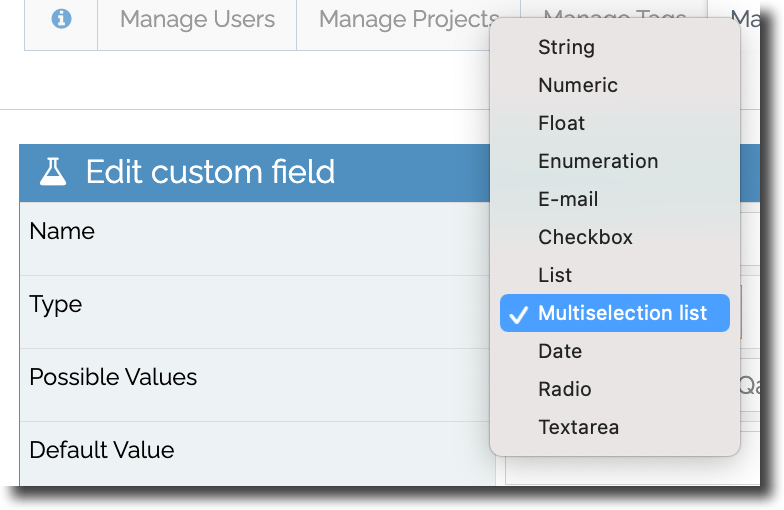
Most of the ‘Type’ options for custom fields are self-explanatory (string, numeric, text area etc). However, we’ve had some common questions from our customers which we’ve turned into these tips below:
- Float is essentially a decimal number.
- Enumeration is a list of values and is displayed as a dropdown list. You can only select one option and a check mark is displayed next to the selection.
- List shows you all the value options in one box.
- Multiselect is a list that allows selection of more than one option by holding the Shift/Cmd/Ctrl key.
- Checkbox and Radio both display all options with a box or circle to denote the selection. Checkbox will allow more than one value to be checked whereas Radio only allows one value.
Other custom field settings
You also have a number of settings in the custom field configuration where you can nominate if this field should be:
- displayed when reporting, editing, resolving or closing an issue
- mandatory when reporting, editing, resolving or closing an issue
- available as a filter option on the View Issues page.
- mandatory when reporting, editing, resolving or closing an issue
Cool Feature: You can reference your versions and categories fields as possible values of a custom field! When defining your custom field, set the type to be ‘List’ and within the ‘Possible Values’ setting you can define the following options:
- ‘=users’ will list users with access to the project + empty/none option
- ‘=handlers’ will list users with access to be assigned issues in the project + empty/none option
- ‘=versions‘ will lists all non-obsolete versions
- ‘=released_versions‘ will list all released versions
- ‘=future_versions‘ will list all non-released, non-obsolete versions
- ‘=categories‘ will use your list of categories

But keep an eye on this space… cause we hope to release more options for referencing other fields as possible values in the future! Check out our support article for help on creating custom fields.
Linking the field to the project
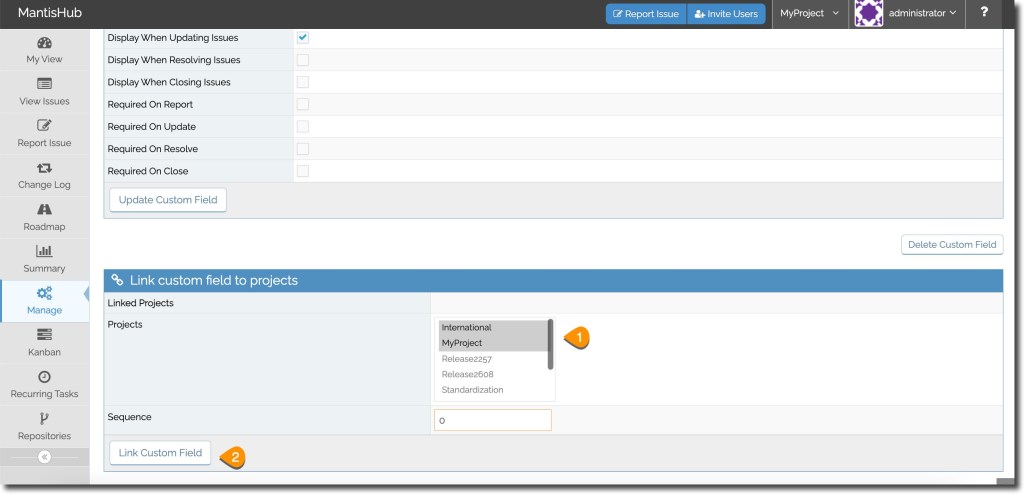
Once the custom field is created, you need to link it to the projects in which you wish to use it. Go into your newly created custom field and scroll to the bottom where you will see the “Link custom field to projects” section. Select the project (or multiple projects by holding down the shift + ctrl/cmd key). Optionally you can specify a Sequence which determines the order in which it appears in the issue details. Then Click “Link Custom Field”.
Happy data gathering! As always you can reach out to the MantisHub experts on the support team if you need help with any aspect of setting up or linking custom fields.



 MantisHub